WordPress can be an excellent place to start.
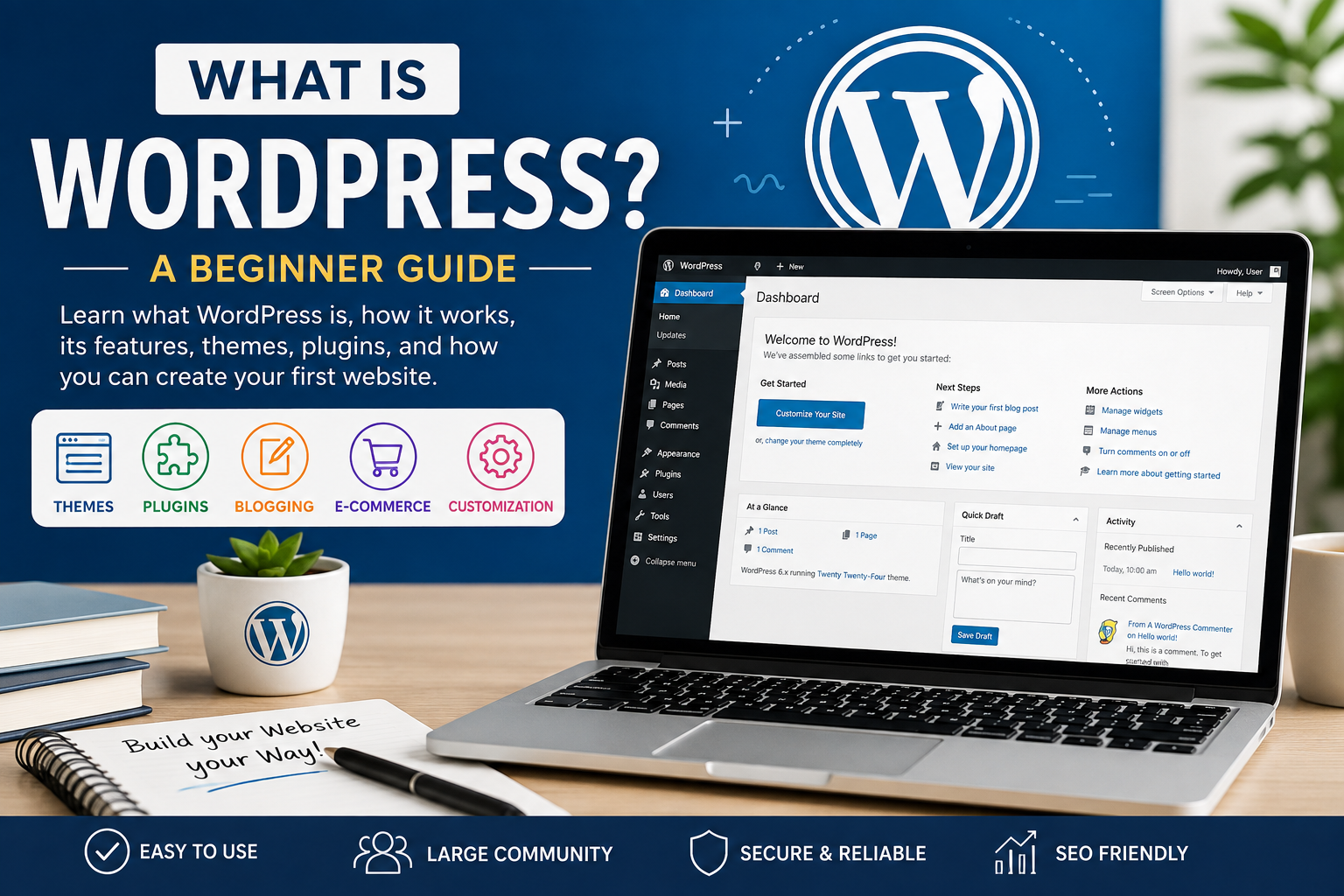
WordPress is one of the most popular platforms for creating websites and blogs. You do not need to be an expert programmer to build a professional-looking website with WordPress. With its easy-to-use interface, themes, plugins, and thousands of customization options, beginners can create websites with relatively little technical knowledge.
In this beginner guide, we will understand what WordPress is, how it works, its main features, the difference between WordPress.com and WordPress.org, and how you can create your first WordPress website.
What Is WordPress?
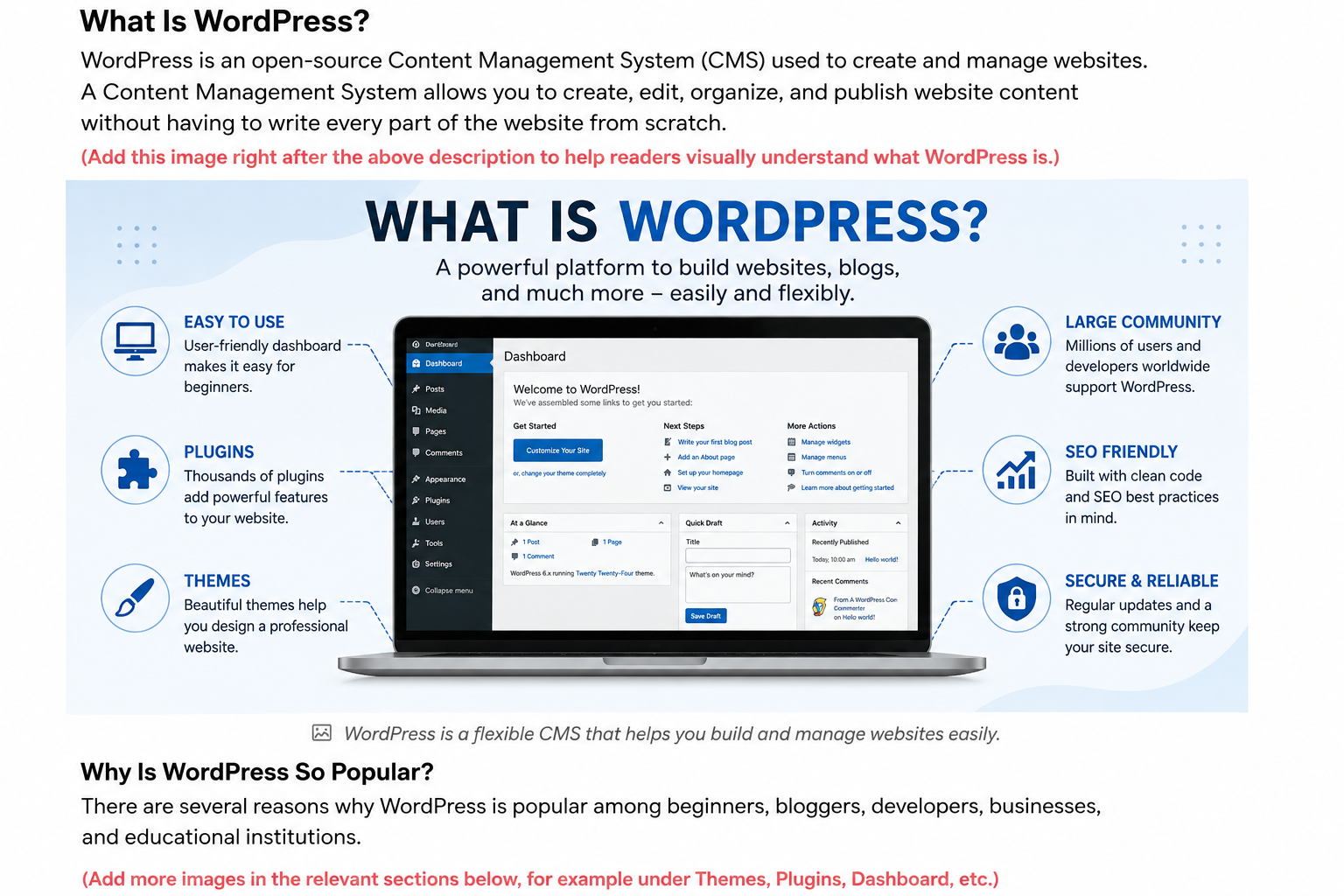
WordPress is an open-source Content Management System (CMS) used to create and manage websites.
A Content Management System allows you to create, edit, organize, and publish website content without having to write every part of the website from scratch.
WordPress was initially developed mainly for blogging, but today it can be used to create many different types of websites, including:
- Personal blogs
- Business websites
- Educational websites
- News websites
- Portfolio websites
- Online stores
- Membership websites
- College and university websites
- Online magazines
- Community websites
One of the biggest advantages of WordPress is that beginners can start with a simple website and gradually add more features as they learn.
Why Is WordPress So Popular?
There are several reasons why WordPress is popular among beginners, bloggers, developers, businesses, and educational institutions.
1. Easy to Use
WordPress provides an administrative dashboard where you can manage your website.
From the dashboard, you can:
- Create blog posts
- Add pages
- Upload images
- Create menus
- Create categories
- Install themes
- Install plugins
- Manage comments
- Customize your website
You can perform many tasks using the visual interface without writing HTML, CSS, or PHP code.
2. WordPress Is Open Source
WordPress is open-source software. This means its source code is available for developers to study and modify.
A large global community contributes to WordPress development, themes, plugins, documentation, and support.
3. Thousands of Themes
A theme controls the appearance and design of your website.
You can choose a theme according to the purpose of your website.
For example:
- Blog theme
- Education theme
- Business theme
- Magazine theme
- Portfolio theme
- E-commerce theme
You can also customize colors, fonts, layouts, headers, footers, and other design elements depending on the theme.
4. Plugins Add New Features
A plugin is an extension that adds functionality to your WordPress website.
For example, plugins can help you add:
- Contact forms
- SEO features
- Security
- Website backups
- Analytics
- Social media integration
- E-commerce functionality
- Image optimization
This makes WordPress flexible because you can start with a simple website and add features when you need them.
What Is a WordPress Website Made Of?
A basic WordPress website usually contains several important components.
Posts
Posts are normally used for regularly published content such as blog articles and news.
For example:
Title: What Is Digital Marketing?
Category: Digital Marketing
Author: Tarun Kumar
Date: August 14, 2026
Content: The complete article.
Pages
Pages contain relatively permanent information.
Common pages include:
- Home
- About Us
- Contact Us
- Privacy Policy
- Disclaimer
Categories
Categories help organize your blog posts.
For example, if you create a technology blog, you could have:
- WordPress
- PHP
- Python
- Artificial Intelligence
- Data Analytics
- Digital Marketing
When you publish an article, you can assign it to the appropriate category.
Tags
Tags provide another way to organize content.
For example, an article about WordPress could have tags such as:
WordPress, Blogging, CMS, Website, Beginner Guide
Tags are usually more specific than categories.
What Is the WordPress Dashboard?
The WordPress Dashboard is the administration area from which you manage your website.
After logging into WordPress, you will generally see options such as:
Dashboard
Posts
Media
Pages
Comments
Appearance
Plugins
Users
Tools
Settings
The exact options can vary depending on your WordPress version, theme, and installed plugins.
The Dashboard is essentially the control center of your website.
What Is a WordPress Theme?
A theme determines how your website looks.
Think of a theme as the design or appearance of your website.
For example, a blog theme can determine:
- Header design
- Blog layout
- Font styles
- Colors
- Sidebar
- Footer
- Navigation menu
- Featured image layout
You can change your theme without deleting your existing posts and pages.
However, before changing a theme on an important website, it is a good idea to create a backup and check that your content and functionality continue to work correctly.
What Is a WordPress Plugin?
A plugin adds additional functionality to WordPress.
For example, imagine that you have created a blog and now want to add a contact form.
Instead of developing the entire contact-form system yourself, you can install a suitable WordPress plugin.
Similarly, plugins can provide features for SEO, security, backups, forms, caching, e-commerce, and many other purposes.
However, installing too many unnecessary plugins can make website management more complicated. It is better to use reliable plugins and keep them updated.
WordPress.com vs WordPress.org
One of the most confusing topics for beginners is the difference between WordPress.com and WordPress.org.
WordPress.com
WordPress.com is a hosted platform. Much of the technical server management is handled for you.
It can be convenient for beginners who want to start publishing without managing their own hosting environment.
WordPress.org
WordPress.org provides the WordPress software that you can install on your own web hosting.
With a self-hosted WordPress website, you generally have greater control over:
- Themes
- Plugins
- Website files
- Hosting
- Customization
- Website functionality
For people who want to learn website development and have greater control over their website, self-hosted WordPress is often a useful option.
What Do You Need to Create a WordPress Website?
To create a self-hosted WordPress website, you generally need three main things.
1. Domain Name
A domain name is the address of your website.
For example:
example.com
It is the address visitors use to reach your website.
2. Web Hosting
Web hosting provides the server space where your website files and database are stored.
When someone visits your domain, the hosting server delivers your website to their browser.
3. WordPress
WordPress is the software used to manage your website content.
Many hosting providers offer tools that make WordPress installation easier.
How to Create Your First WordPress Website
Creating a WordPress website can be divided into a few basic steps.
Step 1: Decide Your Website Topic
First, decide what your website will be about.
For example:
Technology Blog
Possible categories could include:
- WordPress
- PHP
- Python
- AI
- Data Analytics
- Digital Marketing
Step 2: Choose a Domain Name
Choose a short and memorable domain name related to your website topic.
Try to make it:
- Easy to remember
- Easy to type
- Easy to pronounce
- Relevant to your content
Step 3: Purchase Hosting
Choose a suitable hosting plan for your website.
Your hosting provider will normally give you access to a control panel where you can install WordPress.
Step 4: Install WordPress
Use your hosting provider’s WordPress installation option or install WordPress manually.
After installation, you can access your WordPress administration area.
Step 5: Choose a Theme
Go to:
Appearance → Themes
Choose a suitable theme and customize it according to your website requirements.
Step 6: Create Important Pages
Create basic pages such as:
- Home
- About
- Blog
- Contact
- Privacy Policy
- Disclaimer
Step 7: Create Categories
Create categories related to your website topic.
For example:
Technology
- WordPress
- Programming
- AI
- Data Analytics
Step 8: Publish Your First Blog Post
Go to:
Posts → Add New Post
Enter your title, write your content, add images, select a category, and publish the article.
Congratulations! You have published your first WordPress blog post.
Advantages of WordPress
WordPress offers many advantages for beginners.
Easy Content Management
You can create and manage content through the WordPress Dashboard.
Flexible
WordPress can be used for a simple blog as well as a large and complex website.
Customizable
Themes and plugins allow you to change the design and functionality of your website.
Large Community
Because WordPress is widely used, there are many tutorials, documentation resources, themes, and plugins available.
SEO-Friendly
WordPress provides a useful foundation for search-engine optimization, although good SEO still requires quality content, proper structure, performance optimization, and other practices.
Disadvantages of WordPress
WordPress is powerful, but it also has some challenges.
Security
A WordPress website needs regular maintenance. Outdated WordPress versions, themes, or plugins can create security risks.
Updates
You should regularly update WordPress, themes, and plugins and test important websites after updates.
Performance
Installing unnecessary plugins or using poorly optimized themes can affect website performance.
Maintenance
A self-hosted WordPress website requires you to manage backups, updates, security, hosting, and other technical tasks.
Is WordPress Suitable for Beginners?
Yes.
WordPress is particularly useful for beginners who want to learn how websites and blogs work without starting with advanced programming.
You can begin with basic concepts such as:
- WordPress Dashboard
- Posts
- Pages
- Categories
- Tags
- Themes
- Plugins
- Menus
- Media
- Website settings
After learning these fundamentals, you can gradually learn HTML, CSS, PHP, JavaScript, databases, SEO, and website security.
Frequently Asked Questions
Is WordPress free?
The WordPress software itself is open-source and available free of charge. However, a self-hosted website generally requires paid services such as a domain name and web hosting.
Do I need programming knowledge to use WordPress?
No. Beginners can create and manage many types of WordPress websites without programming knowledge. Programming becomes useful when you want deeper customization or development work.
Can I create a blog with WordPress?
Yes. Blogging is one of the original and still very common uses of WordPress.
Can WordPress create an online store?
Yes. WordPress can be extended with e-commerce functionality using suitable plugins and themes.
Is WordPress only for blogs?
No. WordPress can be used for blogs, business websites, portfolios, educational websites, magazines, online stores, and many other types of websites.
Conclusion
WordPress is a powerful and flexible Content Management System that makes website creation accessible to beginners.
You can start with a simple blog, learn how posts, pages, categories, themes, and plugins work, and gradually develop your skills.